Modifying Text Justification
Use the EditTextJustification command to modify the justification point of selected text, paragraph, or attribute entities.
 Note: The text position does not change.
To modify the text justification:
- Do one of the following:
- On the ribbon, click XtraTools > Annotation > Edit Text Justification.
- On the menu, click XtraTools > Annotation > Edit Text Justification.
- Type EditTextJustification.
- In the graphics area, specify the text entities.
- Press Enter.
- Specify the justification option:
- Start. Start point of the text baseline
- Center. Center point of the text baseline
- Middle. Middle point of the text
- Right. Right point of the text baseline
- TL. Top left point of the text

- TC. Top center point of the text

- TR. Top right point of the text
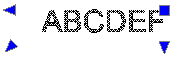
- ML. Middle left point of the text

- MC. Middle center point of the text

- MR. Middle right point of the text
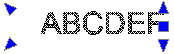
- BL. Bottom left point of the text
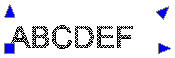
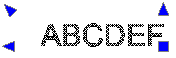
- BC. Bottom center point of the text

- BR. Bottom right point of the text
- Press Enter.
Access
Command: EditTextJustification
Menu: XtraTools > Annotation > Edit Text Justification
Ribbon: XtraTools > Annotation > Edit Text Justification