
Trimming Entities
Use the Trim command to cut drawing entities precisely at the edges defined by one or more entities.
Consider the following:
Use Lines, InfiniteLines, Rays, PolyLines, RichLines, Circles, Arcs, Ellipses, Splines, and Hatches as cutting edges to trim the selected entities.
You can trim Hatches at cutting edges, but you cannot trim Hatches at Hatches. Trimmed Hatches maintain associativity with changed boundary entities, even if they are divided into different hatched areas. Divided Hatches remain as one entity, but you can use the EditHatch command to separate them into individual entities (dialog box option Create Hatch for each boundary). The same applies to Gradients.
You cannot trim Notes, SimpleNotes, Regions, or Blocks, but you can use them as cutting edges.
When you select a PolyLine as a cutting edge, the command trims at its centerline.
When you select a RichLine as a cutting edge, the command trims at the first intersecting line.
On Sheets, Viewports can be cutting edges.
To trim entities:
Do one of the following:
On the ribbon, click Home > Modify > Trim.
On the menu, click Modify > Trim.
Type Trim.
In the graphics area, select entities to make up the cutting edge.
Note: If you specified a RichLine, the command trims the entities at the first intersecting line.
Press Enter.
In the graphics area, select entities on the side that you want to trim or specify options:
Crossing. Selects entities within and crossing a rectangle determined by two opposite points. If a crossing selection is not distinct, Trim resolves the selection by following the defined rectangle clockwise from the first point to the first entity encountered.
Crossline. Uses the fence selection method to trim the entities on the side the fence line crosses.
Behavior. When using the command for a large number of entities, lets you reduce the set of entities taken into account as trimming cutting edges.
Standard. Considers all specified entities as cutting edges.
Fast. When selecting all entities as cutting edges, considers only visible entities from the current view.
Edge. Trims to a a cutting edge that if extended, intersects the entity. The entities to trim do not have to actually intersect cutting edges. To trim at an implied intersection, specify the Edge option followed by the Extend option.
Erase. Deletes entities without exiting the Trim command.
Project. Sets the projection mode to CCS (the X-Y plane of the active Custom Coordinate System), None, or View.
Undo. Reverses the most recent trim operation.
Fence. Trims the entities on the side the fence line crosses.
Shift + select. Extends entities while you hold down Shift and select entities.
Press Enter.
Example:
Entities trimmed at a RichLine
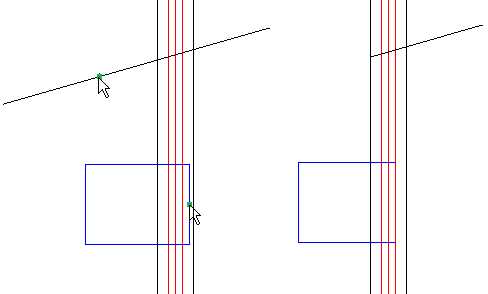
The pointer selections are shown on the left. The result is on the right.
Access
Command: Trim
Menu: Modify > Trim
Tool Palettes: Modify > Trim
Ribbon: Home > Modify > (Flyout) Trim
Related Topics
Changing the Length of Entities
Trimming Entities with PowerTrim
Parent Topic