Creating 3D Solids and 3D Surfaces by Extruding 2D Entities

The Extrude command creates solid primitives by extruding closed 2D entities such as PolyLines, Circles, Ellipses, and Regions.
Use the Extrude command to create 3D solids or 3D surfaces.
To extrude entities, use one of these methods:
- Specify the path for extrusion
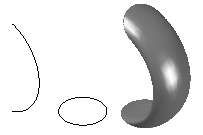
Specify the entity to extrude and a path defining the shape of the extrusion. The entity follows the path to create 3D solids or 3D surfaces.
The extrusion starts from the plane of the entity and maintains its orientation relative to the path.
- Specify the taper angle.
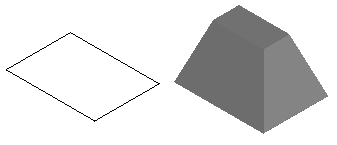
Specify the entity to extrude and a taper angle. The taper angle is between -90 and +90 degrees. The sign of the taper angle specifies the taper direction. A taper angle of 0 degrees extrudes a 2D entity that is perpendicular to its 2D plane.
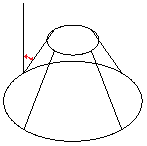
To create an extrusion:
- Click Solids > Draw > Extrude (or type Extrude).
- Type Extrude at the command prompt.
- Specify the type of model to create.
- Surface. Creates surfaces from the selected entities.
- Solid. Creates 3D solids from the selected entities.
- Specify the entities to extrude.
- Specify a height for the extrusion. All entities use the same height.
The software extrudes the entity and creates a 3D solid.
To extrude an entity along a path:
- Click Solids > Draw > Extrude (or type Extrude).
- Specify the type of model to create.
- Surface. Creates surfaces from the selected entities.
- Solid. Creates 3D solids from the selected entities.
- In the graphics area, specify the entities to extrude and press Enter.
- Specify the Path option.
- Specify an entity for the extrusion path.
To extrude an entity with a taper angle:
- Click Solids > Draw > Extrude (or type Extrude).
- Type Extrude at the command prompt.
- Specify the type of entities to create.
- Surface. Creates surfaces from the selected entities.
- Solid. Creates 3D solids from the selected entities.
- Specify the entities to extrude and press Enter.
- Specify the Taper angle option.
- Specify the taper angle and press Enter.
- Specify the extrusion height.
Access
Command: Extrude
Menu: Solids > Draw > Extrude
Ribbon: 2D Drafting > Modeling > (Flyout) Extrude