Comparing Drawings

While working on a project, you may receive modified drawings from your colleagues. No matter how many changes are, how small or big, reviewing the changes is a time consuming task. However, it is necessary to see what has changed in the successive versions or revisions.
The DrawingCompare command lets you visually compare two drawings and automatically detect differences. The command works in Model mode and in Sheet mode.
You can compare older revisions against the latest revision of a drawing or two similar drawings. The command identifies and highlights the differences where entities have been added, deleted, or modified.
The comparison result is displayed in the current drawing using different colors.
From the Drawing Compare palette you can change the colors for each category of entities and highlight the differences using revision clouds.
- Entities that are only in the current drawing (deleted entities)
- Entities that are only in the comparison drawing (new entities)
- Entities that are in both drawings are displayed in gray
Revision clouds include also changes from a 3D isometric view.
As long as the comparison is active, the tool detects all modifications that occur in the current drawing. You can browse and zoom each difference and decide whether to keep entities in the drawing or not.
Export the result as a separate drawing or merge the new entities into the current drawing.
Note: Entities that are on frozen layers are not taken into account in comparison preview.
The DrawingCompare command displays the Drawing Compare palette.
Comparison Limitations
The drawing comparison has the following limitations:
- Supports the following file types: DWG, DXF, DWT, DWS.
- Does not take into account the following entity types: OLE entities, cameras, geographic data, GIS entities, external references, such as DGN underlays, DWF underlays, PDF underlays, images, coordination models, and point clouds.
- Does not detect property changes, such as ByBlock and ByLayer within nested blocks.
- Does not make the difference between lines and polylines.
- Revision clouds do not include changes from a 3D isometric view.
- Does not allow you to compare the comparison result with a third drawing.
- Ignores Lineweight, lineStyle and colors.
- Explodes blocks.
To show the Drawing Compare palette:
- Do one of the following:
- On the menu, click Collaborate > Drawing Compare.
- On the ribbon, click Collaborate > Utilities > Drawing Compare.
- Type DrawingCompare at the command prompt.
To hide the Drawing Compare palette:
- Type HideDrawingCompare at the command prompt.
To compare two drawings:
- Open the base drawing.
- Type DrawingCompare at the command prompt.
- On the Drawing Compare palette, click Load file.
- In the Open File dialog box, browse to the file to compare with the current drawing.
- Recent. Displays a list of recently opened drawings.
- This PC. Displays your system folders, devices, and network locations.
- Cloud storages. Lets you select a drawing from one of your cloud storage. Use Manage storage
 to add Cloud Storage services to the list.
 - Browse. Displays the classic Open dialog box.
- Click Open.
- On the Drawing Compare palette, click Toggle the comparison.
The graphics area displays the comparison result in extended view.
Example:
- Green circle - only in the current drawing
- Red circle - only in the comparison drawing
| Current drawing | Comparison drawing | Comparison result |
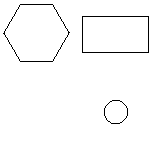 |
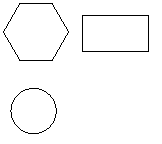 |
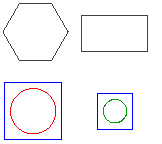 |
To import entities from the comparison drawing into the current drawing:
- On the Drawing Compare palette, use the right and left arrows to browse the differences.
- From the flyout, select the suitable option:
- Import. Imports missing entities from the currently selected difference into the current drawing.
- Import All. Imports all missing entities from the comparison drawing into the current drawing.
Entities are added into the current drawing and automatically turn gray.
To export the comparison result:
- On the Drawing Compare palette, click Export comparison result.
- In the dialog box, specify the following:
- Save in: Navigate to the folder where you want to store the file.
- File name: Type a name for the file.
- Save as type: Select a file type for exporting.
- Click Save.
The Drawing Compare Palette
The Drawing Compare palette groups the tools for comparing two versions of a drawing.
From the Drawing Compare palette, you can:
- Load the drawing to compare with the current drawing.
- View the differences between two versions independently of LineStyle and LineColor.
- Browse the differences, analyze and decide whether to keep changes or not.
- Refresh the current drawing view
- Control the representation of differences in the graphics area
- Control the display of overlapping entities in the comparison result
- Display or hide hatches and text entities in the graphics area
Note: The Drawing Compare palette is available in the Model mode only. Using the DrawingCompare command in Sheet mode automatically switches the drawing to the Model mode.
The palette contains three sections:
- Differences: Lets you specify the color for the comparison result in the drawing.
- Clouds: Lets you specify the color, shape and size of the revision clouds that mark differences.
- Filters: Lets you include or exclude hatch and text entities from the comparison result drawing.
- Statistics. Displays a report for the current difference. The report includes the number of entities missing from the current drawing and the number of entities that are only in the current drawing. Entities are counted by their type.
In addition, there is a toolbar at the top of the palette.
Toolbar
Use the buttons in the toolbar at the top of the Drawing Compare palette for navigation and access options:
- Toggles the comparison
 : Displays or hides the comparison result.
 - Back
 and Forward
  : Lets you navigate between differences. Also, you can specify a difference by typing the index number.
 - Flyout with tools for managing entities in the compared drawings. The flyout is enabled after using the toggle to display comparison results.
- Restore
 : Imports all missing entities into the current drawing and deletes all additional entities.
 - Import
 : Imports missing entities in the currently selected difference into the current drawing.
 - Import All
 : Imports all missing entities from the comparison drawing into the current drawing.
 - Remove
 : Deletes entities that only exist in the comparison drawing from the current comparison result.
 - Remove All
 : Deletes entities that only exist in the comparison drawing from all comparison results.
- Restore
- Export comparison result
 : Saves the comparison drawing in a specified location.
 - Refresh
 : Refreshes the current drawing view. An orange dot on the Refresh icon
  indicates that the current drawing has been changed.
Access
Command: DrawingCompare