Adding Constraints to CustomBlocks
Within a CustomBlock, you can apply constraints to maintain geometric relationships and size as you modify the CustomBlock.
- Geometric constraints define the relationship between entities of the CustomBlock definition. For example, you can specify that two circles should always remain concentric or that a side of a polygon should always be horizontal.
- Dimensional constraints let you control the size of entities of the CustomBlock. For example, you can define dimensional constraints to maintain the length of a polygon segment.
Constraint parameters let you specify how entities relate to each other, so that the geometry is preserved while changing the entity size.
Dimensional Constraints Parameters
Dimensional constraints from the Block Editor are called constraint parameters.
Constraint parameters let you expose custom grip points and custom properties of the CustomBlock. Using constraint parameters you can control the distance, length, diameter, radius, and angle values of entities within a CustomBlock. Changing the value of constraint parameters changes the size of the related entities.
Additionally, you can define mathematical expressions to specify relationships between constraint parameters. For example, you can specify that the diameter of a circle is always half of the length of another entity.
You can use both, dimensional constraints and constraint parameters in CustomBlock definitions. Also, you can convert existing dimensional constraints into constraints parameters.
In the Block Editor, the tools for adding constraint parameters are grouped on the Dimensional panel of the Edit Block ribbon tab.
Use the CBCElement command to add a dimensional constraint parameter to an entity of a CustomBlock definition. Command options correspond to the choices provided by individual element commands from the Block Editor (Dimensional panel).
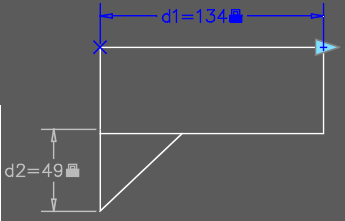
Example:
d1 is a dimensional constraint parameter
d2 is a dimensional constraint
User Parameters in CustomBlocks
User parameters let you define editable custom properties for a Block reference. Blocks update automatically if any user parameter is changed.
In the Block Editor, the Parameters palette lists:
- Action parameters
- Dimensional constraint parameters
- User parameters
- Attributes
To convert a dimensional constraints into a dimensional constraint parameter:
- In the Block Editor, select a dimensional constraint.
- On the ribbon, click Edit Block > Dimensional > Convert.
In the Parameters palette, the specified dimensional constraint is moved under Dimensional Parameters.
Parent Topic