Working with Dimension Styles
Use the DimensionStyle command to create and modify DimensionStyles.
DimensionStyles control the way Dimensions look.
You can define Dimension Styles to apply annotative scaling for Dimensions.
To enable the Dimension Styles Manager, make sure the DIMSTYLEDLGMODE system variable is set to 1. Otherwise, the DimensionStyle command opens the Dimension category on the Drafting Styles page of the Options dialog box.
Managing Dimension Styles
To create a new Dimension Style:
- Click Format > Dimension Style (or type DimensionStyle).
- In the Dimension Style Manager dialog box, select a Dimension Style.
- Click New.
- In the Create new Dimension Style dialog box:
- For Name, type a value.
- In Based on, select an existing Dimension Style. This style serves as the base settings for the new Dimension Style.
- In Apply to, select a Dimension type. This specifies that the new Dimension Style is valid for all Dimensions or for a specific type of dimensioning.
- Click Next.
- In the Create New Dimension Style dialog box, set up the DimensionStyle. See Dimension Style Settings below.
- Click OK.
To modify a Dimension Style:
- Click Format > Dimension Style (or type DimensionStyle).
- In the Dimension Style Manager dialog box, select a Dimension Style to modify.
- Click Edit. See DimensionStyle Settings below.
- Click OK.
To set the active Dimension Style:
- Click Format > Dimension Style (or type DimensionStyle).
- In the Dimension Style Manager dialog box, select a DimensionStyle to activate.
- Click Activate.
 displays beside the active Dimension Style.
 - Click OK.
To compare Dimension Styles:
- Click Format > Dimension Style (or type DimensionStyle).
- In the Dimension Style Manager dialog box, click Differences.
- In the Find Differences in DimensionStyles dialog box, in Compare and To, select a DimensionStyle.
The DimensionStyle settings that differ are listed in the dialog box.
- Click Copy to copy the differences, or click Close.
- Click Close.
To override DimensionStyle settings:
You can temporarily change settings of the active DimensionStyle. These changes do not modify the DimensionStyle settings. The overriding settings can be applied as long as no other DimensionStyle is set as active.
- Click Format > Dimension Style (or type DimensionStyle).
- In the Dimension Style Manager dialog box, select a Dimension Style to override.
- Click Activate.
- Click Set Overrides.
- Set Dimension Style overrides. See DimensionStyle Settings below.
- Click OK.
To rename a DimensionStyle:
- Click Format > Dimension Style (or type DimensionStyle).
- In the Dimension Style Manager dialog box, select a Dimension Style to rename.
- Click Rename.
- In the Rename DimensionStyle dialog box specify a new name for the selected DimensionStyle and click OK.
 Alternatively, double-click a Dimension Style on the Styles list to rename it.
To delete a DimensionStyle:
- Click Format > Dimension Style (or type DimensionStyle).
- In the Dimension Style Manager dialog box, select a DimensionStyle to delete.
- Click Delete.
Confirm the deletion of the selected DimensionStyle. You cannot delete the Dimension Style named Standard or Dimension Styles referenced in the drawing by Dimension entities.
You can remove Dimension Styles that are not referenced in the drawing with the Clean command.
DimensionStyle Settings
You can modify DimensionStyles using the settings in the Create New Dimension Style dialog box for new Dimension Styles, and in the Edit Dimension Style dialog box for existing Dimension Styles.
Lines
Lets you modify the display settings for Dimension lines.
Dimension line settings
- Style: Sets the Dimension line LineStyle.
- Weight: Sets the Dimension line LineWeight.
- Color: Sets the Dimension line LineColor.
- Offset: Sets the offset distance of Dimension lines when baseline dimensioning is applied using the BaselineDimension command.
- Distance past start arrow: Sets a distance to extend the Dimension line beyond the extension line when you apply certain arrowheads such as tick or architectural.
- Hide:
- Dimension line 1: Determines whether the first Dimension line and arrowhead between the first extension line and the Dimension text is displayed.
- Dimension line 2: Has the same effect as Dimension line 1 for the second extension line and Dimension text.
Extension line settings
Extension lines are the lines that extend the Dimension outside the perimeter of the measured entity, assuming that dimensioning is to take place outside of these perimeter constraints.
- Styles: Sets the LineStyle for Extension line 1 and Extension line 2.
- Weight: Sets the extension line LineWeight.
- Color: Sets the extension line LineColor.
- Distance past dimension lines: Sets the distance the extension lines should run past the Dimension lines.
- Hide: Hides the first and/or second extension line.
- Offset: Sets the offset distance between the entity and the point where extension lines begin.
- Fixed length: Specifies whether extension lines should have a preset length. Set a value in Length.
Symbols & Arrows
Lets you modify the appearance of symbols and arrows.
Arrows
- Start arrow: Specifies the Dimension's starting arrowhead.
- End arrow: Specifies the Dimension's ending arrowhead.
- Leader arrow: Sets the Dimension's leader arrow style.
- Size: Sets the arrowhead size.
Note: For any arrow, you can use an existing Block as arrowhead. Select the Custom arrow option from the drop-down list and specify the Block from the Select Custom Arrow dialog box.
Radius dimension jog
- Angle: Determines the angle of the transverse segment of the dimension line in a jogged radius Dimension.
- Gap: Specifies the width of the default gap when you use the SplitDimension command to split dimension and extension lines which cross other entities.
Center mark display
- None, As mark, As centerline: Defines the display of marks that indicate a Circle's center point and defines whether or not dashes or strokes should be added to center marks.


As mark As centerline (accordig to the drawing standard)
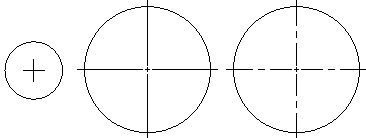
As mark As centerline (accordig to the drawing standard)
- Size: Lets you specify the size of the center mark or the length of the extension lines, according to the selected center mark display for center, diameter, and radius Dimensions.
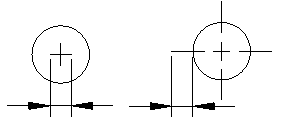
As mark (size) As centerline (length of the extension line)
Arc length symbols
Lets you set the display of a symbol for arc length Dimensions: Before dimension text, Above dimension text, or None.
Text
Lets you modify the display of text for Dimensions.
Text settings
- Style: Sets the Dimension TextStyle. Click
 to define TextStyles.
 - Color: Sets the Dimension TextColor.
- Fill: Sets the Dimension text background color.
- Height: Sets the Dimension text height.
- Fractional scale: Sets a scale factor for the text height of tolerance values relative to the general Dimension text height.
- Frame dimension text: Draws a frame around Dimension text.
Text position
- Horizontal and Vertical: Sets the horizontal and vertical positions of the Dimension text.
- Offset from dimension lines: Sets the distance that text is offset from the Dimension lines.
Text alignment
You can align the Dimension text with the following options:
- Use ISO standard
- Align horizontally
- Align with dimension lines
Fit
Fit options determine how to arrange Dimensions if there is not enough space for text and arrows between the extension lines.
Geometry
- When space is limited, move selected entity outside of extension lines: When there is not enough room to place text and arrows inside the extension lines, the first entity to move outside the extension lines is:
- Automatic: Either text or arrows (best fit)
- Arrows
- Text
- Text and arrows
- Keep text between extension lines
- Hide arrows: Suppresses arrows if they do not fit inside the extension lines.
Dimension scale
- Annotative Scaling: Specifies whether annotative scaling is used for Dimensions which apply the DimensionStyle you define. In Style, annotative DimensionStyles are marked with an
 icon.
icon. - Scale factor: Specifies the overall scale for DimensionStyle settings. The scale factor influences size, distance, and spacing, including text and arrowhead sizes.
This option is available only if you selected annotative scaling for the DimensionStyle.
- Scale dimensions according to sheet: Sets a scale factor based on the ratio between the current Viewport and the drawing Sheet.
This option is available only if you selected annotative scaling for the DimensionStyle.
Dimension text
- When dimension text is not in the default position, move it: When Dimension text is not in the default position, you can place it:
- Above the dimension line with leader
- Above the dimension line without leader
- Next to the dimension line
Additional options
- Dimension lines between extension lines: Forces dimension lines to remain between the extension lines, even if the arrowheads are generated outside the Dimension.
- Specify text placement: Lets you position Dimension text manually; horizontal justification settings are ignored.
Primary units
Lets you modify the display of primary units for Dimensions.
Linear Dimension
- Format: Sets the primary linear units format.
- Precision: Sets the number of decimal places.
- Fractional display: Sets the stack display of fractional units.
- Decimal separator: Sets the decimal separator for Dimensions whose unit Format is set to Decimal.
- Round to the nearest: Lets you specify a value for rounding.
- Prefix and Suffix: Lets you type a character string to appear before or after the Dimension text. For example, the suffix field can display the unit of measurement.
- Measurement scale:
- Scale factor: Forces all linear Dimension texts (including the Dimension text of diameters, radii, and coordinates) to be multiplied with the specified scale factor. Angular Dimensions and the plus-/minus values of Tolerances are not affected. The setting applies especially for non-associative dimensioning (for example, when you dimension scaled details).
- Follow sheet dimensions: Applies the measurement scale factor to Dimensions created on Sheets only.
- Zeroes display:
- Hide leading zeroes and Hide trailing zeroes: Lets you suppress leading and trailing zeroes in decimal linear Dimensions.
- Hide if 0' and Hide if 0": If you set Format to Architectural or Engineering, you can also specify whether to hide zero feet (Hide if 0') and zero inches (Hide if 0")
Angular dimension settings
- Format: Sets the primary angular units format (Decimal Degrees, Deg/Min/Sec, Grads, or Radians).
- Precision: Sets the number of decimal places.
- Zeroes display: Lets you suppress leading and trailing zeroes in angular Dimensions.
Alternate Units
These options control the use of a second, alternative dimensioning method. This mode allows dual dimensioning in metric and imperial values.
- Show alternate dimensions: Determines whether to use alternate units in Dimensions.
- Alterbate dimension settings
- Format: Sets the alternate unit format.
- Precision: Sets the number of decimal places.
- Multiplier for converting units: Sets a multiplier for converting units.
- Round to the nearest: Lets you specify a value for rounding.
- Prefix and Suffix: Lets you specify a prefix and suffix for the Dimension value.
- Zeroes display
- Hide leading zeroes and Hide trailing zeroes: Lets you suppress leading and trailing zeroes.
- Hide if 0' and Hide if 0": If you set Format to Architectural, Architectural Stacked, or Engineering, you can also specify whether to hide zero feet and zero inches.
- Insertion
- Below primary units and After primary units: Specifies whether alternate units are placed after or below the primary Dimension value.
Tolerance
Lets you modify tolerance for Dimensions.
Tolerance settings
- Calculation: Sets the format for tolerance creation:
- Basic: Displays the additional Dimension measurement and deviation in a single value with a box around it.
- Deviation: Appends separate plus and minus values of deviation to the Dimension measurement.
- Limits: Displays a maximum and a minimum value, one on top of the other.
- None: Does not generate a tolerance value.
- Symmetrical: Appends a plus/minus tolerance value to the Dimension measurement which indicates the positive and negative deviation in a single value.
- Precision: Sets the number of decimal places.
- Maximum value and Minimum value: Sets values for the positive or negative tolerances.
- Scale: Sets the tolerance scale.
- Vertical text justification: Sets the tolerance text justification.
- Zeroes display:
- Hide leading zeroes and Hide trailing zeroes: Lets you suppress leading and trailing zeroes in decimal tolerance Dimensions.
- If you set the Format for Linear Dimension to Architectural or Engineering, you can also specify whether to hide zero feet (Hide if 0') and zero inches (Hide if 0").
Alternate units
- Precision: Sets the number of decimal places for alternate Dimensions in geometric tolerances.
- Zeroes display:
- Hide leading zeroes and Hide trailing zeroes: Lets you suppress leading and trailing zeroes in decimal alternate Dimensions.
- If you set the Format for Linear Dimension to Architectural or Engineering, you can also specify whether to hide zero feet (Hide if 0') and zero inches (Hide if 0").
Access
Command: DimensionStyle
Menu: Format > Dimension Style
Ribbon: Home > Annotations > Dimension Style 