Setting Additional Options for Hatches and Gradient Fills
When defining hatch boundaries by specifying internal points, the command detects the entities that form the boundary. In this case, additional options allow you to control the automatic detection of boundaries.
You can do the following:
- Detect or ignore internal closed boundaries
- Keep or delete the initial closed contour used when the hatch was created
- Specify a gap tolerance for hatching boundaries with gaps
- Specify the set of entities to be analyzed for boundary detection.
Optionally, use the Origin and Transparency options to better display hatched entities.
To detect or ignore internal closed boundaries:
- Click Find internal regions to detect internal closed boundaries.
- On the Placement panel, in Display, specify a hatch display style to detect internal closed boundaries.
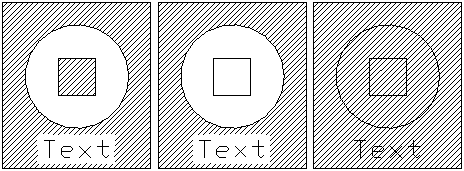
- Outer. Creates hatch patterns only in the outermost areas.
- Normal. Creates hatch pattern between alternate areas, starting with the outermost area (default).
- Ignore. Ignores the internal structure and hatches the entire area. Hatch lines pass through text, block attributes, and 2D solids.
- Click a hatch Display style.
- Out
 . Creates hatch patterns only in the outermost areas.
 - In/Out
 . Creates hatch pattern between alternate areas, starting with the outermost area (default).
 - Ignore
 . Ignores the internal structure and hatches the entire area. Hatch lines pass through text, block attributes, and 2D solids.
- Out
-
The following diagram illustrates the In/Out, Out, and Ignore styles.
To set the hatch default origin:
- Select a default Origin setting. On the Placement panel, in Origin, select a default origin setting:
- Use current. Uses the origin point for the hatching specified with the current Hatch command.
- Use source. Uses the origin of existing hatches.
To keep the boundary used when the hatch was created:
Optionally, you can maintain the initial closed contour normally deleted when a hatch is created.
On the Mode panel:
- In Boundary preservation, click Keep boundaries.
- From the Type list, select whether the boundary contour is created as PolyLine or Region
To specify a gap tolerance for hatching boundaries with gaps:
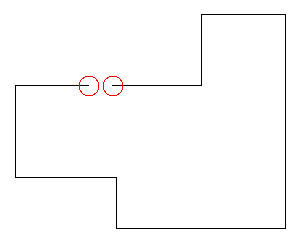
If there are gaps between the entities selected for a boundary definition, the command does not create the hatch. Red circles appear at endpoints near the gap and a message displays. However, you can define a gap tolerance so that, when creating the hatch, gaps equal to or smaller than the specified value are ignored. The command considers the boundaries closed and creates the hatch. If the gap is greater than the specified tolerance value, the message informs you that the hatch cannot be created.
 You cannot select and manipulate the red circles. Use Rebuild or RebuildAll if you no longer need them displayed.
On the Additional Options panel:
In the Additional Options dialog box
- In Gaps, specify a Maximum gap size.
Gaps equal to or smaller than the specified value are ignored.
- In Gaps, specify a maximum gap size.
Gaps equal to or smaller than the specified value are ignored and the hatch is created.
To specify the set of entities for the boundary detection:
- In Boundary group, do one of the following:
- Select Active View Tile to create a boundary group from all visible entities from the current viewport.
- or -
- Click
 to select entities for the boundary.
 - In the graphics area, specify the entities and press Enter.
- Click
- Select Active View Tile to create a boundary group from all visible entities from the current viewport.
To set the target Layer for subsequent hatches and fills:
On the Additional Options panel:
- From the Layer list, select the name of a Layer for subsequent hatches or fills, or select <Active> to place subsequent hatches or fills on the currently activated Layer.
The setting is valid for the current drawing and stored in the drawing. <Active> is the default for new drawings, unless the template file for the drawing sets a specific Layer name.
To set the hatch line color:
On the Additional Options panel:
- In LineColor, specify the color of the hatch lines:
- ByBlock. Uses the current line color setting of a block, if the line color is contained in that Block.
- ByLayer. Uses the current layer line color setting.
- Specify color. Lets you specify a standard or a custom color for the hatch line.
To set the hatch background color:
On the Additional Options panel:
- In Background color, specify the color of the hatch background. The Specify color option lets you specify a standard or a custom color for the hatch background.
To specify hatch or fill transparency level:
On the Additional Options panel:
- In Transparency, specify the transparency level of the hatch or fill:
- Use current. Uses the current transparency setting for new entities.
- ByLayer. Uses the current layer transparency setting.
- ByBlock. Uses the current transparency setting of a block, if the hatch or fill is contained in that Block.
- Specify value. Uses the transparency setting that you specify by either entering a value in the text box or using the slider. Specify a value between 0 and 90% where 0% means no transparency (opaque).
Access
Command: Hatch
Menu: Draw > Hatch
Tool Palettes: Draw > Hatch