Editing Tables and Table Cells
You can insert, delete, merge, or resize cells, rows, and columns in tables. You can modify the cells in place or use the EditTableCell command to modify table cells from the command window.
Options provided by the EditTableCell command correspond to some tools available on the Table contextual ribbon.
If you select a table or a range of cells in the graphics area and the ribbon is active, the Table contextual ribbon tab appears. The contextual ribbon tab groups options and tools for modifying tables. For example, tools for inserting and deleting rows and columns, merging cells, change the appearance of cell borders, modifying the formatting.
Grip points provide additional means to modify tables. When you click inside a cell to select it, grip points appear on the cell border. You can select one or more cells or an entire row or column.
Grip points displayed on the middle of the cell border let you resize table cells. Drag grip points to adjust the cell height and width.
A special grip point in the lower right corner of the cell lets you autofill incremental values in the table.
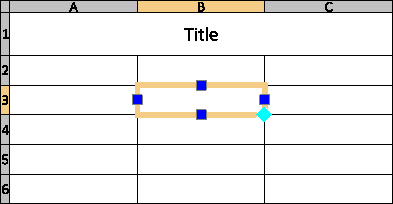
To select a range of cells, click and drag over several cells. Alternatively, hold down Shift and click inside another cell to select all the cells between them.
If you select a table or a range of cells in the graphics area and the ribbon is active, the Table contextual ribbon tab appears. The contextual ribbon tab groups options and tools for modifying tables. For example, tools for inserting and deleting rows and columns, merging cells, change the appearance of cell borders, modifying the formatting.
 With a range of cell selected, use Ctrl + Y or F4 to repeat the last action.
To resize table cells:
- Select one or more table cells to edit them in place:
- Click a table cell
- or -
- Shift + click multiple table cells
- or -
- Click a row or column header to select entire rows or columns
The selected cell(s) are highlighted and display with grips. Column and row headers appear.
The editing tools appear.

- Click a table cell
- Use tools on the Edit Table Cells toolbar pop-up toolbar to modify the table
- According to the type of user interface, do one of the following:
- Use tools on the Edit Table Cells toolbar pop-up toolbar to modify the table.
- Use the tools on the Table ribbon tab to modify the table.
- Use the tools on the Table contextual ribbon tab to modify the table.
- Use the left or right cell grip to adjust the column width of the selected column and the top and bottom cell grip to adjust the height of the selected rows.
To edit text in table cells:
- Select one or more table cells to edit them in place:
- Click a table cell
- or -
- Shift + click multiple table cells
- or -
- Click a row or column header to select entire rows or columns
The selected cell(s) are highlighted and display with grips. The editing tools appear.
- Click a table cell
- Use tools on the Edit Table Cells toolbar pop-up toolbar to modify the table
- According to the type of user interface, do one of the following:
- Use tools on the Edit Table Cells toolbar pop-up toolbar to modify the table.
- Use the tools on the Table ribbon tab to modify the table.
- Use the tools on the Table contextual ribbon tab to modify the table.
- Right-click selected cells to access additional options:
- Edit Text. Opens the Note Formatting pop-up toolbar to edit table cell text.
- Delete All Contents. Deletes text in the selected cell(s).
- Properties. Lets you modify cell properties in the Properties palette.
- Click outside the table to finish editing.
To use the same text in multiple table cells, select the cells, then enter the text in the Data text box of the Content area of the Properties palette. In this area, you can also apply the same text color, text height, and TextStyle in multiple table cells.
To modify the border line appearance:
- Select one or more table cells to edit them in place:
- Click a table cell
- or -
- Shift + click multiple table cells
- or -
- Click a row or column header to select entire rows or columns
The selected cell(s) are highlighted and display with grips.
The editing tools appear.
- Click a table cell
- Do one of the following:
- On the Edit Table Cells toolbar, click Cell Format
 .
. - On the ribbon, select Table > Cell > Cell Format.
- On the Edit Table Cells toolbar, click Cell Format
- On the Edit Table Cells toolbar, click Cell Format .
- In the Cell Format dialog box, do the following:
- LineColor. Select a color for the specified borders.
- LineStyle. Select a LineStyle for the specified borders.
- LineWeight. Select a LineWeight for the specified borders.
- Apply to. Applies the selected LineColor, LineStyle and LineWeight to the selected border.
Note: Use ByBlock to apply line properties defined in the TableStyle.
With a range of cells selected, use Ctrl + Y to open the Cell Format dialog box.
To edit table cells with the EditTableCell command:
- Type EditTableCell at the command prompt.
- Specify a table cell.
- Specify a cell or a range of cells in the format An or An:An, where A stands for column indicator(s) and n stands for row number(s).
For example, C3 or B2:D5.
- Use command options (Insert, Remove, Size, Merge, and Unmerge) and sub-options to modify the table.
The options correspond to the Edit Table Cells pop-up toolbar options (see above).
Options for working with the cell content:
- Content. Lets you lock and unlock specified cells for editing.
- Datatype. Lets you specify the data type.
- Formula. Lets you specify a formula.
- InsertBlock. Opens the Insert Block in Table Cell dialog box and lets you insert a Block in the specified cell.
- InsertField. Opens the Field dialog box and lets you insert a field in the specified cell.
Options for formatting data:
- Format. Lets you align the cell content and change the background color. Additionally, you can lock and unlock the specified cells for changing the format.
- ContentFormat. Lets you lock and unlock specified cells to protect them from accidentally changing the format while modifying the content.
- Specify the Exit option.
To edit table presentation using EntityGrips:
- Click a table guideline.
- The EntityGrips appear.
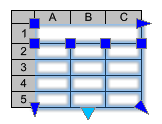
- Select EntityGrips to modify the table:
-
EntityGrip Location Description Upper left corner Moves the table. Upper right corner Stretches the table horizontally. Lower left corner Stretches the table vertically. Lower right corner Stretches the table horizontally and vertically. Lower midpoint Breaks the table. Top of columns Adjusts the column widths. - Click outside the table to finish modifying the table's appearance.
Click table grips twice to move, rotate, scale, or copy entire tables (see Modifying with EntityGrips).
Access
Command: EditTableCell
Menu: Modify > Entities > Table Cells