
Creating Patterns of Hatches
Use the PatternHatch command to create hatches using block entities, images, external references or masks.
You can save configurations as favorites for later use in other projects and drawings.
 Not: Seçilen sınırları kaydedemezsiniz, çünkü bu sınırlar çizime bağlıdır. Böylece herhangi başka şekil ve sınırlara kaplamayı uygulayabilirsiniz.
To create a pattern of hatches from blocks, images, or external references:
Aşağıdakilerden birini yapın:
On the ribbon, click XtraTools > Draw > Pattern Hatch.
On the menu, click XtraTools > Draw > Pattern Hatch.
Type PatternHatch.
In the dialog box, in Type, select the pattern type to use for the hatch:
Block. Lets you select a predefined block and use it for the hatch pattern.
Image. Lets you select an image.
External reference. Lets you select an external reference file for the hatch pattern.
Mask. Lets you use a mask object for the hatch pattern.
In Pattern, click Browse
 and select the block, image or external reference file to use as pattern.
In Size and position, specify options:
Specify X and Y scale value by which to scale the hatch pattern.
Specify the horizontal and vertical distance between patterns.
Specify the origin or initial pattern position. You can use Specify entities
 to select the origin in the graphics area.
Specify the rotation angle of the pattern. You can use Rotation angle
 to define the rotation angle in the graphics area.
Not: Çizimden bir varlıktan desen tipini ve adını çıkarmak için Varlıktan çıkart kullanabilirsiniz. Böylece çizime bir desen yerleştirebilir ve onunla bir kaplama oluşturabilirsiniz.Select a method to specify the boundaries:
Objeleri belirtin
 : Sınırı oluşturan objeleri seçmenize imkan sağlar.
Specify points
 . Lets you click points in enclosed areas to define the boundaries.
Rebuild boundary
 . Replaces a boundary after removing (enabled only when using the EditHatch command).
Delete boundary entities
 . Removes boundaries from the set of entities that form the boundaries.
Highlight boundary entities
 . Displays the boundaries in the drawing.
In Type of entities, specify if you want to create the hatch as an anonymous block or as a group of entities. If Mask is selected the hatch can only be created as block entity.
Kaplamayı blok olarak oluşturmanız önerilir, böylece düzenleyebilirsiniz. Varlık gruplarını düzenleyemezsiniz.In Limits, define the hatch behavior at boundary:
Cut entities: When enabled, cuts the pattern entities that surpass the specified boundary. When disabled the pattern entities can surpass the limits. For example, you can use this option when representing trees on a terrain and you do not want the trees representations to be cut.
Draw surpassing entities: When disabled, the entities that surpass the boundary limits are not displayed. For example, you can use this option when representing parking places in a parking and you do not want to display any place that surpasses the defined boundary.
In Tolerance for curves, specify the precision for the approximation of curved boundaries (the maximum distance between the midpoint of any given segment and the arc).
Not: Bloklarla veya resimlerle çalışırken, standart sınırlayıcı sınırlar kullanılır. Standart sınırlayıcı sınırlar sadece düz segmentler içerebilir, bu nedenle sınır eğrisel segmentler içeriyorsa düz segmentler kullanılarak benzer bir şekle dönüştürülmelidir.Click Preview to check the resulting hatch without creating it.
Sonucu ihtiyaç duyduğunuz kadar çok kez önizleyebilirsiniz.Tamam’a tıklayın.
To create a pattern of hatches from mask:
Aşağıdakileri yapın:
On the ribbon, click XtraTools > Draw > Pattern Hatch.
On the menu, click XtraTools > Draw > Pattern Hatch.
Type PatternHatch.
In the dialog box, in Type, select Mask.
Select a method to specify the boundaries:
Objeleri belirtin
: Sınırı oluşturan objeleri seçmenize imkan sağlar.Specify points
. Lets you click points in enclosed areas to define the boundaries.Rebuild boundary
. Replaces a boundary after removing (enabled only when using the EditHatch command).Delete boundary entities
. Removes boundaries from the set of entities that form the boundaries.Highlight boundary entities
. Displays the boundaries in the drawing.
In Limits, define the hatch behavior at the boundary:
Cut entities: When enabled, cuts the pattern entities that surpass the specified boundary. When disabled the pattern entities can surpass the limits. For example, you can use this option when representing trees on a terrain and you do not want the trees representations to be cut.
Draw surpassing entities: When disabled, the entities that surpass the boundary limits are not displayed. For example, you can use this option when representing parking places in a parking and you do not want to display any place that surpasses the defined boundary.
In Tolerance for curves, specify the precision for the approximation of curved boundaries (the maximum distance between the midpoint of any given segment and the arc).
Not: Bloklarla veya resimlerle çalışırken, standart sınırlayıcı sınırlar kullanılır. Standart sınırlayıcı sınırlar sadece düz segmentler içerebilir. Sınır eğrisel segmentler içeriyorsa, düz segmentler kullanılarak benzer bir şekle dönüştürülmelidir.
To define a pattern and save it in favorites:
Aşağıdakilerden birini yapın:
On the ribbon, click XtraTools > Draw > Pattern Hatch.
On the menu, click XtraTools > Draw > Pattern Hatch.
Type PatternHatch.
In the dialog box, in Type, select the pattern type to use for the hatch: Block, Image, External reference, or Mask.
In Pattern, click Browse
and select the block, image, or external reference to use as pattern.Specify options for the pattern and specify the boundary. See To create a pattern of hatches from blocks, images or external references.
In the Favorites section, in Name, type the name of the configuration.
Click Save favorite
 . İhtiyacınız olan kadar çok önceden tanımlanmış yapılandırmayı Favoriler’de kaydedebilirsiniz.
To delete a pattern configuration from favorites:
In the dialog box, from the Name list, select the pattern configuration to remove from favorites.
Click Remove favorite
 .
.
Örnek
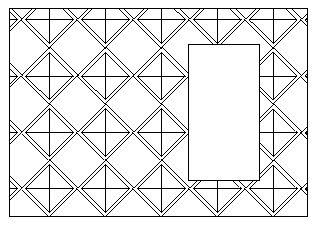
In this example, a block is used to hatch the following closed area.
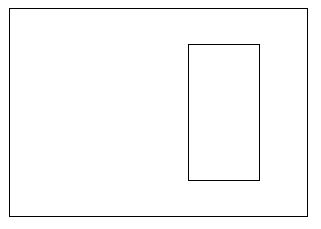
Draw the geometric entities and define the block.

Use the following setings:
Enable Cut entities.
Enable Draw surpassing entities.
Area hatched with the defined block:
Erişim
Command: PatternHatch
Menu: XtraTools > Draw > Pattern Hatch
Ribbon: XtraTools > Draw > Pattern Hatch
Üst Öğe Konusu