
Modifying 3D Solids by Pushing and Pulling Geometry
Use the PushPull command to extrude 2D entities into surfaces and to modify 3D solids.
The results vary based on the type of entity. If you push and pull linear entities such as lines or arcs, you create surfaces. For 3D solids, if you push and pull existing closed entities such as Circles and PolyLines, you modify the geometry of the 3D solid.
For 3D solids, you can simultaneously modify multiple closed entities.
To modify 3D solids by pushing and pulling geometry:
Click Solids > Draw > Push and Pull (or type PushPull).
In the graphics area, specify the entity to extrude and press Enter.
If you want to extrude more than one entity, specify the Multiple option.
You can click inside an entity (3D solid or area) or a face of a 3D solid and then drag it in or out. Thus you can create a hole or an extrusion.
If you specified the Multiple option, specify other 3D solids and press Enter.
Note: You can specify multiple faces of the same 3D solid. The command will extrude all specified faces at once.
Enter a value or click in the graphics area to specify the extrusion height. All selected entities will use the same extruding height.
The shape of the selected entities is extruded with the specified height.
Examples:
Extruding a 3D solid by selecting a face and pulling it out.
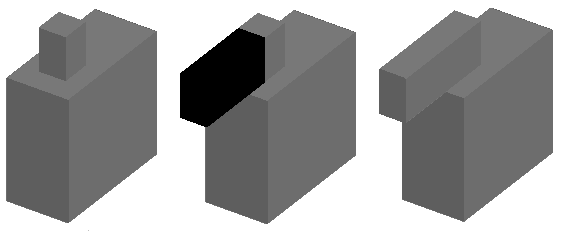
Extruding a 3D solid by selecting a face and pushing it in.
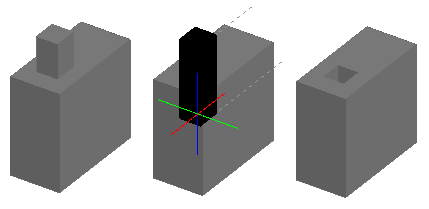
Extruding two faces of a 3D solid.
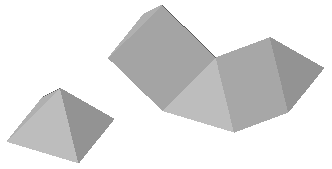
Extruding a spline into a surface.
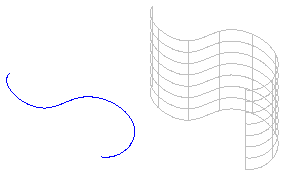
Access
Command: PushPull
Menu: Solids > Draw > Push and Pull
Ribbon: Home > Modeling > (Flyout) Push and Pull
Parent Topic