
Copying Entities
Use the Copy command to duplicate drawing entities and place a copy of them at a specified location.
The duplicated entities are exact copies of the specified entities including all entity properties such as Layers, LineColors, LineStyles, and LineWeights, as well as the outline of the entities. Optionally, you can force the copied entities onto the active layer.
Based on one selection, you can create multiple copies.
In addition, you can create a specified number of copies in a linear pattern. See Copying Entities in a Linear Pattern.
To copy drawing entities:
Do one of the following:
On the menu, click Modify > Copy.
On the ribbon, click Home > Modify > Copy.
Type Copy at the command prompt.
Specify the entities you want to duplicate and press Enter.
Do one of the following:
Specify a source base point for the copy.
Specify the Displacement option to provide a relative location of the copy. Specify the X, Y, and Z displacements, for example, 3,5,5. If you want to make the copy in the X and Y directions only, do not specify a Z delta.
This option exits the command after you specify the displacement.
Specify the Mode option to determine whether the command repeats automatically:
Single. Lets you specify only one destination point to create a single copy.
Multiple. Lets you specify destination points until you press Enter to create multiple copies.
Then specify a source base point for the copy.
Specify the Active Layer option to force the entities onto the active layer, then specify the destination point. This setting is preserved during the current application session until you reset it.
Then specify a source base point for the copy.
Do one of the following:
Specify a destination point to displace the copy.
If you press Enter, the source base point is interpreted as a relative X,Y,Z displacement.
Specify the Pattern option to create a specified number of copies in a linear pattern.
If you create multiple copies, specify subsequent destination points.
The copies are placed at the specified positions. If the result of a multiple copy is unexpected, specify the Undo option.
To finish duplicating entities, press Enter.
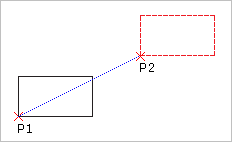
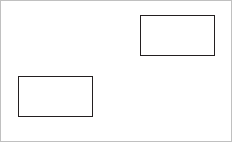
You specify a base point (P1 in the diagram) and a destination point (P2) to indicate the distance and direction of the copied entities from the original entity. These points do not have to be selected on the original entity.
 The Pattern command is an effective tool to create multiple copies in a linear or circular pattern.
The CopyNested command lets you duplicate drawing entities that are contained in a Block or a Reference
Use the Clipboard to Copy and Paste entities to another drawing. See Using the Clipboard.
Access
Command: Copy
Menu: Modify > Copy
Tool Palettes: Modify > Copy
Ribbon: Home > Modify > (Flyout) Copy
Related Topics
Copying Entities in a Linear Pattern
Copy, Move, Rotate, and Scale in One Operation
Parent Topic