
About the View Navigator
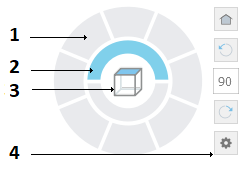
The View Navigator is a two ring widget displayed by default in the top-right corner of the graphics area. The View Navigator lets you switch between standard and isometric views of your model with a single click.
Use the ViewNavigator command to display the View Navigator.
By default, the View Navigator is in an inactive state. It becomes active when you hover the mouse cursor over the View Navigator’s interface.
When the View Navigator is inactive, it is displayed with transparency. You can control the opacity level, as well as the location of the View Navigator in the graphics area.
You can switch to one of the available predefined views by clicking one of the ring sectors. The views can be relative to the active CCS or WCS. The cube’s position changes to reflect the orientation of the model.
Note: The cube reflects only standard views of the model. When you use interactive 3D viewing tools, such as RollView, the View Navigator hides the cube.
Hovering the cursor over the ring sectors of the View Navigator displays a tooltip. The tooltip describes the orientation of the view corresponding to the ring sector.
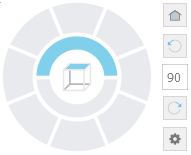
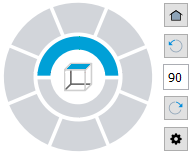
Elements of the View Navigator
|
|
Related Topics