
Aligning Workspaces
Use the AlignWorkspaces command to adjust the zoom factor and position of the current view, based on the alignment points specified in the Model workspace and Sheet workspace. The tool aligns the points specified in the Model workspace with the points specified in the Sheet workspace.
 Note: This command is available in Sheet mode only.
Additionally, you can use the command for the following operations:
Position a view correctly within a viewport, based on one point specified in Model workspace and one point in Sheet workspace. The zoom factor of the viewport does not change.
To specify only one point in Model workspace or in Sheet workspace, press Enter at the second point prompt.Zoom a view based on two points specified in Model workspace and two points in Sheet workspace. The zoom factor and the custom coordinate system (CCS) are adjusted according to the specified points.
To align workspaces:
Do one of the following:
On the ribbon, click XtraTools > View > Align Workspaces.
On the menu, click XtraTools > View > Align Workspaces.
Type AlignWorkspaces.
In Model workspace, specify two points (P1 and P2) to align.
In Sheet workspace, specify two points (P3 and P4) to align with.
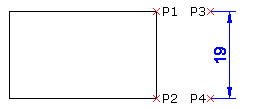
Press Enter.
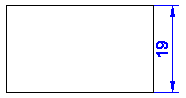
The content from the Model workspace is aligned with Sheet workspace.
Access
Command: AlignWorkspaces
Menu: XtraTools > View > Align Workspaces
Ribbon: XtraTools > View > Align Workspaces
Parent Topic