
Constructing Arcs
You can construct arcs of any length or radius. You can also append Arcs to other Line, PolyLine, or Arc entities. By default, Arcs are drawn from the start point in the positive direction. The default direction depends on the Clockwise option (see Specifying Units and Precision).
To construct Arcs from three points:
Click Draw > Arc > 3 Points (or type Arc).
In the graphics area, specify the start, through, and endpoints.
To construct Arcs from center points:
Click Draw > Arc and specify a center-based option:
Start, Center, Angle: Lets you select the start and center point in the graphics area. Then you specify the value of the total angle from its chord.
Start, Center, End: Lets you select the start, center, and endpoint in the graphics area.
Start, Center, Length: Lets you select the start and center point in the graphics area. Then you enter the value of the arc chord length.
 Press Ctrl key when specifying an angle to draw the arc in the opposite direction.
Specify the required points in the graphics area or specify coordinate values.
To construct an Arc from start and endpoint options:
Click Draw > Arc and specify a start and endpoint-based option:
Start, End, Angle to select the start point and endpoint in the graphics area, and specify the positive or negative value of the angle from the chord tangent to the start point.
Start, End, Direction to select the start point, endpoint, and tangent direction from the start point in the graphics area.
Start, End, Radius to select the start point and endpoint in the graphics area, and specify the value of the arc angle tangent from its chord.
Press Ctrl key when specifying an angle to draw the arc in the opposite direction.Specify the required points in the graphics area or specify coordinate values.
To append an Arc tangentially to a Line, PolyLine, or Arc:
Click Draw > Arc (or type Arc).
Specify the Append option.
In the graphics area, select a Line, PolyLine, or Arc entity.
- or -
Press Enter if you want to append the Arc to the most recently drawn Line, PolyLine, or Arc.
Specify the endpoint of the Arc.
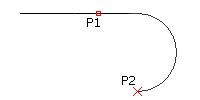
To continue an Arc from the end of the most recently drawn Line, PolyLine, or Arc:
Click Draw > Arc > Continue (or type Arc, then press Enter).
In the graphics area, specify a through point (or select an option).
Specify the endpoint of the Arc.
Access
Command: Arc
Menu: Draw > Arc
Tool Palettes: Draw > Arc
Ribbon: Home > Draw > Arc
Related Topics