
Creating a Frame Around a Text
Use the TextFrame command to create a frame around specified text entities.
The frames can have the following shapes:
Slot of constant or variable size
Rectangle of constant or variable size
Circle of constant or variable diameter
You can create frames with a transparent or solid background.
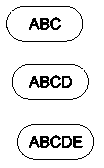
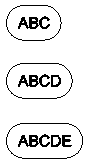
Variable frames adjust their size according to the size of the selected text. Frames with constant size surround the selected texts with frames that have the same width or height.
Examples:
Slots with constant width
Slots with variable width
To create a text frame of constant size:
Do one of the following:
On the ribbon, click XtraTools > Annotation > Text Frame.
On the menu, click XtraTools > Annotation > Text Frame.
Type TextFrame.
In the dialog box, in Type, select the shape of the frame: Slot, Rectangle, or Circle.
In Dimensions, specify options:
Select Constant.
Type the offset of the frame.
For a slot or a rectangular frame, in Maintain Constant, specify the frame side that must remain constant. You can keep the width, the height, or both.
Optionally, in Background, set a solid background:
Select Hatch.
In Color, select a color for the background.
Click OK.
In the graphics area, specify the text entities for which you want to create the frames and press Enter.
To create a text frame of variable size:
Do one of the following:
On the ribbon, click XtraTools > Annotation > Text Frame.
On the menu, click XtraTools > Annotation > Text Frame.
Type TextFrame.
In the dialog box, in Type, select the shape of the frame: Slot, Rectangle, or Circle.
In Dimensions, specify options:
Select Variable.
Type the offset of the frame.
Optionally, in Background, set a solid background:
Select Hatch.
In Color, select a color for the background.
Click OK.
In the graphics area, select the text entities for which you want to create the frames and press Enter.
Access
Command: TextFrame
Menu: XtraTools > Annotation > Text Frame
Ribbon: XtraTools > Annotation > Text Frame
Parent Topic