
Creating a Text Mask
Use the TextMask command to place a blank area behind specified text entities.
Optionally, you can:
Define a margin around the text.
Apply a solid mask to the text. You can select a background color for the text.
Modify the properties of an existing text mask.
 Note: The text and the mask act as an entity. You can move, copy, or delete them together.
To remove masks from text entities, use the TextUnMask command.
To separate the text from the mask, use the Explode tool.
To create a default text mask:
Do one of the following:
On the ribbon, click XtraTools > Annotation > Text Mask.
On the menu, click XtraTools > Annotation > Text Mask.
Type TextMask.
In the graphics area, specify the text entities to mask.
Press Enter.
To create a custom text mask:
Do one of the following:
On the ribbon, click XtraTools > Annotation > Text Mask.
On the menu, click XtraTools > Annotation > Text Mask.
Type TextMask.
Press Enter.
In the dialog box, specify options. See To edit a text mask.
Click OK.
In the graphics area, specify the text entities to mask.
Press Enter.
To apply a solid mask with background:
Do one of the following:
On the ribbon, click XtraTools > Annotation > Text Mask.
On the menu, click XtraTools > Annotation > Text Mask.
Type TextMask.
Press Enter.
In the dialog box, specify options:
In Entity type, select Solid.
In Background, select the color.
Click OK.
In the graphics area, specify the text entities to mask.
Press Enter.
To edit a text mask:
Do one of the following:
On the ribbon, click XtraTools > Annotation > Text Mask.
On the menu, click XtraTools > Annotation > Text Mask.
Type TextMask.
In the graphics area, specify the masked text to edit.
In the dialog box, specify options:
In Entity type, select the type of mask:
Mask. Creates a rectangular mask entity that has the color of the background.
3D Face. Creates a 3D face entity.
Solid. Creates a 2D solid entity in a specified color.
In Dimensions, specify the offset value (the space around the text).
In Background, select the color of the text background. This option is available only for solid text masks.
Click OK.
Examples:
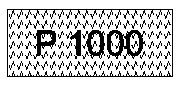
Text over hatch
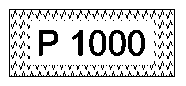
Masked text over hatch
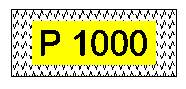
Masked text over hatch, with solid background
Access
Command: TextMask
Menu: XtraTools > Annotation > Convert SimpleNotes
Ribbon: XtraTools > Annotation > Convert SimpleNotes
Related Topics
Parent Topic