Modifying Tables
At any time, you can modify an existing table.
- Modify the size of table rows and columns
Use grip points or the Properties palette to modify the hight and width of rows and columns. Modifying with grip points is a direct and interactive way to manipulate tables. In the graphics area, you select a table row or column, or the entire table. You use grip points to drag defining points of entities to new positions (stretching), or to move, rotate, scale, mirror, or copy entire entities.
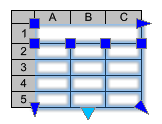
- Modify table appearance
TableStyles determine the structure and appearance of Tables.
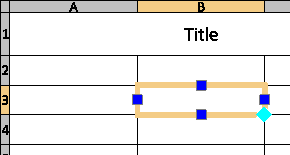
- Modify table cells
Use grip points to extend the cell or its row or column.
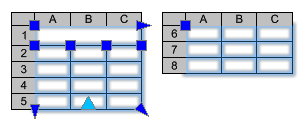
- Split tables
Use the triangular grip point or the Properties palette to break a table into main and secondary table parts.
- Insert or remove rows and columns, merge and unmerge cells
Additional options let you perform various operations with table rows, columns and cells. With a cell selected, right-click to access the context menu.
- Edit text in tables
Use the EditTable command to edit text in tables. You can also edit table text in place using a pop-up toolbar which provides enhanced formatting options.
- Adding Blocks to a table
 With a cell range selected, use Ctrl + Y or F4 to repeat the last action.
All text fields are Text entities that you can edit and format using the Edit Note text editor.
This section discusses: