About Creating Hatches, Fills and Gradients
Hatching a drawing adds meaning and helps to differentiate the materials and areas. Some drawing applications such as construction drawings require hatch patterns which can increase the clarity and legibility of a drawing.
Along with patterns, you can fill an enclosed area or specified entities with a solid color or a color gradient. Like hatches, color fills add meaning to drawings and help differentiate materials and areas.
This topic discusses:
- Adding Hatches, Fills and Gradients
- Selecting Hatch Patterns and Fills
- Specifying the Hatch Start Point
- Specifying Boundaries
- Detecting Boundaries in Complex Drawings
- Reshaping Hatches
- Setting the Hatch Display Options
Adding Hatches, Fills and Gradients
You can use the following commands to add hatches and fills:
- Hatch - Fills an enclosed area of specified entities with a hatch pattern.
- -Hatch - It is the command window variant of the Hatch command.
- FillArea - Fills an enclosed area or specified entities with a solid color or a color gradient.
Selecting Hatch Patterns and Fills
You can hatch areas using various hatch patterns or fill them with a specified color.
The following hatch options are available:
- Predefined patterns: ISO and ANSI conforming patterns, as well as patterns commonly used in specific industries.
- User-defined patterns: Patterns created by users.
- Custom patterns: Patterns determined by a specified Angle and Spacing.
- Solid hatch: Fill in a bounded area with the current color.
- Gradient fill: Fill in a bounded area with a color gradient. Various color gradient are available.
Additionally, you can create a hatch with the same properties as an existing one. See Setting Behavior Options for Hatch and Fill Boundaries.
Note: Use the MirrorHatch command to specify if hatches and gradient fills are reflected or retain their pattern direction when you apply Mirror and Flip commands.
Specifying the Hatch Start Point
By default, when hatching a closed area, the hatch pattern starts at the origin of the drawing. As a result, more complex hatch patterns might not align well with the boundary or with other hatches.
If you specify another starting point, at a suitable location, the software draws the hatch starting from the defined point. For example, you can align adjacent hatch patterns to match or apply a hatch pattern over another hatch pattern by setting a suitable starting points for their hatches.
You can define the hatch start point:
- At the current drawing origin (default)
- At a specified location within or outside the boundary
- At a corner point of the boundary
Specifying Boundaries
A boundary is a set of entities that forms a closed area. Entities that are not part of the boundary are ignored.
There are several methods to define the boundary:
- Selecting a set of entities that define a closed area.
- Specifying a point within a closed area: You need at least one point inside a closed area to create a boundary entity. To create other boundary entities, specify additional internal points.
- Drawing the boundary similarly to a polyline. (only -Hatch command)
Boundaries can include closed internal regions which you can hatch or not. Internal regions are internal closed areas that are completely within the boundary area.
 Note: If the area is not fully closed, the hatch boundary cannot be determined. However, you can define a gap tolerance so that the command ignores the gaps that are smaller than the defined value, considers the boundary closed and creates the hatch.
Additional options allow you to handle areas that are not closed and internal regions. See Setting Additional Options for Hatches and Gradient Fills.
Detecting Boundaries in Complex Drawings
Within a large drawing, you can optimize the boundary detection by specifying a set of entities to be analyzed when specifying a boundary by selecting an internal point.
To specify the set of entities you must define a so called group of entities which can include:
- Specified entities in the graphics area
- All visible entities from the current viewport
Specify the set of entities to be analyzed when specifying a boundary using an internal point. See Setting Additional Options for Hatches and Gradient Fills.
Reshaping Hatches
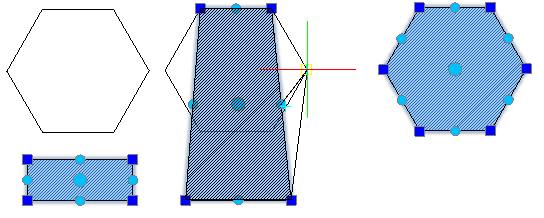
By default, hatches are linked to their boundary. You can reshape the hatch entity by editing the grip points of the hatch boundary. Changing the boundary shape automatically updates the shape of the hatch.
If you disable the link between the hatch and the boundary, you can directly manipulate the shape of the hatch according to a new boundary configuration using the hatch grip points. Hovering over a grip point on a non-associative hatch entity displays a menu with edit options according to the specified type of grip point. For example, for a linear segment, you can choose to convert the segment into an arc or to add a vertex.
Use this method to adjust a hatch whose original boundary has been deleted or moved to fill a new closed contour, such as PolyLines, Lines, Regions, Splines, Circles, Ellipses.
Note: The Keep hatch and boundary related option on the User Preferences page of the Options dialog box controls the link between the hatch and the boundary. Then, you can directly manipulate the shape of the hatch according to the new boundary configuration using the hatch grip points.
To reshape a hatch according to an existing boundary:
Before starting: Disable the Keep hatch and boundary related option on the User Preferences page of the Options dialog box.
- In the graphics area, specify the hatch to modify.
All grip points are displayed.
- Right-click a grip point and specify a vertex editing option from the context menu.
Note: According to the specified grip point, the options in the menu may vary.
- Stretch. Moves the hatch to a specified location.
- Insert vertex. Inserts an additional vertex at the midpoint of the next segment.
- Convert to arc / Convert to line. Converts the next segment to an arc if it is a linear segment or to a line if it is a curved segment. If you convert a linear segment to an arc segment, specify a point to force the arc to pass through.
- Delete vertex. Deletes the current vertex.
Example:
Setting the Hatch Display Options
Optionally, use the following options to better display and select hatched entities:
- Placement: By default, the hatch is created behind the hatch boundary to allow easier selection of the hatch boundary. You can create the hatch behind or in front of the hatch boundary, as well as behind or in front of all other entities. See Setting Behavior Options for Hatch and Fill Boundaries.
- Transparency: Lets you control the hatch transparency to better view the entities beneath the hatch. This option is useful especially for solid fills. See Setting Additional Options for Hatches and Gradient Fills.
- Annotative scaling: Lets you specify whether the annotative scaling is applied when you create or edit the hatch. When you change the scale of Viewports on Layouts Sheets, hatch entities automatically maintain the hatch size. This property ensures similar pattern sizes in Viewports on layout Sheets. See Setting Behavior Options for Hatch and Fill Boundaries.