Creating a Text Mask

Use the TextMask command to place a blank area behind specified text entities.
Optionally, you can:
- Define a margin around the text.
- Apply a solid mask to the text. You can select a background color for the text.
- Modify the properties of an existing text mask.
 Note: The text and the mask act as an entity. You can move, copy, or delete them together.
- To remove masks from text entities, use the TextUnMask command.
- To separate the text from the mask, use the Explode tool.
To create a default text mask:
- Do one of the following:
- On the ribbon, click XtraTools > Annotation > Text Mask.
- On the menu, click XtraTools > Annotation > Text Mask.
- Type TextMask.
- In the graphics area, specify the text entities to mask.
- Press Enter.
To create a custom text mask:
- Do one of the following:
- On the ribbon, click XtraTools > Annotation > Text Mask.
- On the menu, click XtraTools > Annotation > Text Mask.
- Type TextMask.
- Press Enter.
- In the dialog box, specify options. See To edit a text mask.
- Click OK.
- In the graphics area, specify the text entities to mask.
- Press Enter.
To apply a solid mask with background:
- Do one of the following:
- On the ribbon, click XtraTools > Annotation > Text Mask.
- On the menu, click XtraTools > Annotation > Text Mask.
- Type TextMask.
- Press Enter.
- In the dialog box, specify options:
- In Entity type, select Solid.
- In Background, select the color.
- Click OK.
- In the graphics area, specify the text entities to mask.
- Press Enter.
To edit a text mask:
- Do one of the following:
- On the ribbon, click XtraTools > Annotation > Text Mask.
- On the menu, click XtraTools > Annotation > Text Mask.
- Type TextMask.
- In the graphics area, specify the masked text to edit.
- In the dialog box, specify options:
- In Entity type, select the type of mask:
- Mask. Creates a rectangular mask entity that has the color of the background.
- 3D Face. Creates a 3D face entity.
- Solid. Creates a 2D solid entity in a specified color.
- In Dimensions, specify the offset value (the space around the text).
- In Background, select the color of the text background. This option is available only for solid text masks.
- In Entity type, select the type of mask:
- Click OK.
Examples:
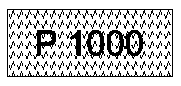
Text over hatch
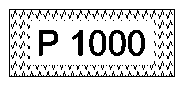
Masked text over hatch
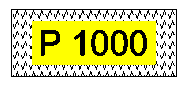
Masked text over hatch, with solid background
Access
Command: TextMask
Menu: XtraTools > Annotation > Convert SimpleNotes
Ribbon: XtraTools > Annotation > Convert SimpleNotes