
Применение методов выбора объектов
При запросе на указание объектов введите один из параметров (или горячую клавишу в скобках) из следующей таблицы.
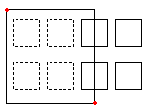
Окно (w) |
Указание всех объектов, которые помещаются в прямоугольник, определенный двумя противоположными точками. |
|---|---|
|
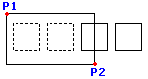
Прямоугольное окно Выбор определяется двумя противоположными угловыми точками. Прямоугольная область выделения Окно определяется двумя противоположными угловыми точками. Разместите указатель на первой угловой точке области выделения и щелкните по этой точке. Щелкните по второй угловой точке, чтобы указать все объекты, полностью находящиеся внутри окна. |
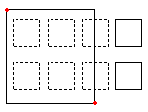
Секрамка (c) |
Указание объектов внутри прямоугольника, определенного двумя противоположными точками. Объекты могут выходить за пределы прямоугольника. |
|
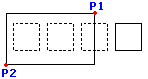
При выборе объектов с использованием метода Пересечение, выбираются объекты, контуры которых пересекаются с окном или находятся внутри него. Разместите указатель так, чтобы его окно включало или пересекало нужные объекты чертежа. Разместите указатель так, чтобы его окно включало или пересекало желаемые объекты чертежа. |
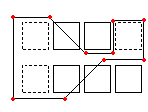
WPolygon (wp) |
Указание объектов, полностью находящихся внутри прямоугольника, определенного указанными точками. |
|
Как и способ Окно, способ Многоугольная рамка позволяет указать все объекты чертежа, контуры которых целиком помещаются внутри окна выбора. В отличие от способа Окно, способ Многоугольная рамка позволяет рисовать окно неправильной формы с неограниченным количеством угловых точек. Как и способ Окно, способ Многоугольная рамка позволяет указать все объекты чертежа, контуры которых целиком помещаются внутри окна выбора. В отличие от способа Окно, способ Многоугольная рамка позволяет рисовать окно неправильной формы с неограниченным количеством угловых точек. |
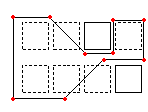
CPolygon (cp) |
Указание объектов внутри многоугольника, определенного указанными точками. Объекты могут выходить за пределы многоугольника. |
|
При выборе с помощью лассо создается контур неправильной формы. Указываются все объекты, полностью или частично расположенные внутри контура лассо. Определите угловые точки окна выбора. Режим предварительного просмотра позволяет просмотреть построенный многоугольник. Линии многоугольника могут пересекаться и образовывать петли. Для завершения построения окна выбора нажмите клавишу Enter. Все объекты, целиком или частично находящиеся внутри секущего многоугольника, указаны для изменения. |
Линия (f) |
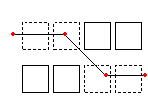
Указывает все объекты, которые проходят через забор, определяемый вами. Метод Fence похож на CPolygon, за исключением того, что забор не замкнут. |
|
Чтобы использовать параметр Многоугольная рамка, определите угловые точки окна выбора. Линии многоугольника могут пересекаться и образовывать петли. Для завершения построения окна выбора нажмите клавишу Enter. Выбираются все объекты, которые находятся внутри окна. Чтобы использовать параметр Многоугольная рамка, определите угловые точки окна выбора. Линии многоугольника могут пересекаться и образовывать петли. Для завершения построения окна выбора нажмите клавишу Enter. Выбираются все объекты, которые находятся внутри окна. |
Предыдущий (p) |
Повторное указание набора последних объектов. |
Параметр Отменить позволяет повторить отмененное выделение последних выбранных объектов. Примечание. Аналогично параметрам Последний и Все объекты на зафиксированном слое не могут быть выбраны, а объекты на заблокированном слое доступны для выбора, однако они не могут быть изменены. |
|
Последний (l) |
Указание последнего созданного видимого объекта. |
Параметр Угол изменяет угол текста размера. Примечание. Если последний нарисованный объект находится на зафиксированном слое, то объект не будет выбран. |
|
Группа (eg) |
Указание объектов указанной группы объектов. |
Опция EGroup выбирает объекты из EntityGroup, указанной по имени группы. Создавайте EntityGroups с помощью команды EntityGroup. |
|
Добавить (a)/Удалить (r) |
Переключение между режимами по умолчанию «Добавить» и «Удалить.» |
Вариант Добавить является режимом по умолчанию, позволяя вам указывать объекты и добавлять их в набор выбора в любое время. Параметр Удалить позволяет удалять выбранные ранее объекты из набора объектов. Режим Удалить позволяет изменить запрос на выбор объектов запросом Удалить объекты. Уже выбранные объекты удаляются из набора объектов при их повторном выборе. |
|
Отменить (u) |
Снятие выделения с последних выбранных объектов. |
Параметр Отменить позволяет повторить отмененное выделение последних выбранных объектов. |
|
Все (all) |
Выбор всех объектов на всех слоях. |
Параметр Все позволяет выбрать все объекты на чертеже кроме тех, которые расположены на зафиксированных слоях. |
|
Один (si)/Несколько (m) |
Переключение между способами выбора «Один» и «Несколько». |
В режиме Один, вы указываете один объект, затем выбор объекта завершается. В режиме Несколько объекты выбираются путем указания нескольких точек без выделения объектов. В этом режиме также выбираются два пересекающихся объекта, даже если точка пересечения была выбрана дважды. |
|
Авто (au) |
Переход в автоматический режим, где указание объекта является его автоматическим выбором. Указание на пустое место создает окно выбора объектов. |
Авто и Все - это режимы выбора объектов по умолчанию. |
|
Прямоугольник (box) |
Выбор объектов указателем, что является сочетанием режимов «Окно» и «Секрамка». Если противоположные точки прямоугольника выбора указываются справа налево, то работа в режиме «Прямоугольник» аналогична работе в режиме «Секрамка». В ином случае режим «Прямоугольник» аналогичен режиму «Окно». |
|
Рисование окна слева направо позволяет указать объекты внутри окна выбора. Рисование окна справа налево позволяет указать объекты, которые целиком или частично помещаются в окно выбора. |
Связанные разделы
Исходная тема