
Using Drawing Tabs
Use the DrawingTabs command to show drawing tabs at the top of the drawing window area. The HideDrawingTabs command hides the drawing tabs.
Drawing tabs provide an easy way to control multiple open drawings.
The tab of the active drawing is white; all other drawing tabs are gray. When you hover over a tab, a tooltip displays the complete path and full name of the drawing file (saved drawings only).
Shortcut menus for the tabs bar provide file commands and options to control the tabs.
Preview panels with thumbnails for each workspace (model or layout sheet) of the open drawings appear as you hover over the tabs. Previews update when you save the drawing or switch between workspaces. If not all thumbnails fit to a preview panel, arrows at both ends of the panel scroll thumbnails to the right or left.
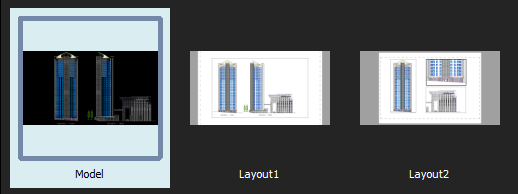
Preview panel
You can reorder the drawing tabs by dragging them.
If more drawings are open than the tabs bar can display:
Click List All Drawings
 to display a list of all open drawings and select one as needed.
Click
 or
or  to move the tabs in the desired direction on the tabs bar.
Asterisks (*) at the end of file names on drawing tabs indicate unsaved drawings.
You can set preferences to show or hide the drawing tabs bar and to select the preview panel display mode.
You can display drawings as floating windows by clicking, holding, and dragging drawing tabs outside the main application. Floating drawing windows let you work on multiple drawings at the same time, within the same session. Additionally, you can float drawings on a second monitor.
Note: You can access the command window, menu, and ribbons for all floating drawing windows from the main application.
To add a new drawing tab:
Click
 next to the last drawing tab.
If no drawing is open, the drawing tabs bar displays the plus icon at the left.
The new drawing uses the default template drawing (similar to the SmartNew command).
To close a drawing tab:
Do one of the following:
Click
 on the drawing tab to close.
Hover over the drawing tab to close and middle-click.
If the drawing has changed since it was last saved, a prompt asks whether to save the changes.
To switch to another drawing:
Click the tab of the drawing to display.
- or -
Press Ctrl+Tab to cycle through open drawing tabs.
To switch to a specific workspace of a drawing:
Hover over specific drawing tab.
Preview panels appear below the tab displaying the model and all layout sheets with the active workspace highlighted.
Select a thumbnail (model or layout sheet) from the preview panel.
The selected workspace displays.
To control drawing tabs with the shortcut menu:
Right-click a drawing tab or the
icon and select an option from the shortcut menu:New. Starts a new drawing with a template drawing.
Open. Opens an existing drawing.
Open from Cloud. Displays the Cloud Storage palette and lets you select a drawing from one of your Cloud Storage accounts.
Save. Saves the drawing with the current file name.
Save All. Saves all open drawings.
Save As. Saves the drawing under a different name.
Close. Closes the active drawing.
Save to Cloud. Displays the Cloud Storage palette and lets you save the current drawing to one of your Cloud Storage accounts.
Close All. Exits all open drawings but not the program.
Close Other Drawings. Closes all open drawings except the active one.
Make First Tab. Makes the tab where you right-clicked the first drawing tab and makes it the active tab.
Make Last Tab. Makes the tab where you right-clicked the last drawing tab and makes it the active tab.
Open Containing Folder. Displays the operating system’s file manager in a separate window pointing to the folder where the file of the selected drawing tab is located.
 Note: If you save or close drawings and one or more drawings have changed since they were last saved, a prompt asks whether to save the changes.
To reorder drawing tabs:
Select a tab and drag it to a different position along the tabs bar.
To move a drawing tab to the first or last position:
Right-click a drawing tab and click Make First Tab or Make Last Tab.
To float drawing tabs from the main application:
Click, hold, and drag the drawing tab to pull the window outside the main application.
Drag and drop the drawing tab on the same screen, or on another screen if available.
Press Ctrl + Tab to navigate between floating drawing windows.
To return the floating drawing to the main application:
Click and hold the floating drawing tab.
Drag and drop the drawing tab onto the drawing tabs bar in the main application.
To set preferences for drawing tabs:
Do one of the following:
Click Tools > Options (or type Options).
In the Options dialog box, click System Options
 .
.Type SystemOptions.
Expand Display > Drawing tabs to set the following:
Show drawing tabs. Controls the display of drawing tabs at the top of the drawing windows area.
In Display settings, select one of the following:
List view. Displays non-graphical lists of workspaces.
Panel preview. Displays thumbnails for each drawing workspace (model and layout sheets) below tabs (default).
Click OK.
Access
Command: DrawingTabs
Related Topics
Parent Topic