
Creating Multiple Copies
Use the CopyMultiple command to create multiple copies of selected entities.
Several methods are available:
Create copies at the pointer position
Create copies at a specified distance (Random option)
Create a specified number of equally spaced copies between two points: a base point followed by a second point.
Create an array of copies
To create copies at the pointer position:
Do one of the following:
On the ribbon, click XtraTools > Modify > Copy Multiple.
On the menu, click XtraTools > Modify > Copy Multiple.
Type CopyMultiple.
In the graphics area, specify the entities to copy.
Press Enter.
Specify the base point.
The entity to copy appears attached to the pointer.
In the graphics area, specify one or more destination points to create copies of the specified entities. The copied entities are placed at the specified positions, relative to the base point.
 If the result is unexpected, specify the Undo option.
To finish duplicating entities, press Enter.
To create a number of copies between two points:
Do one of the following:
On the ribbon, click XtraTools > Modify > Copy Multiple.
On the menu, click XtraTools > Modify > Copy Multiple.
Type CopyMultiple.
In the graphics area, specify the entities to copy.
Press Enter.
Specify the base point.
Specify one of the following options:
Divide. Allocates the number of elements you specify evenly spaced between the base point and a second point.
Specify a second point and the number of copies to create. Press Enter.
Measure. Allocates the elements between the base point and a second point at intervals of a certain specified distance.
Specify a second point and the distance between the copies. Press Enter.
You can use the Undo option to cancel the most recent copy operation.To finish duplicating entities, press Enter.
To create an array of copies:
Do one of the following:
On the ribbon, click XtraTools > Modify > Copy Multiple.
On the menu, click XtraTools > Modify > Copy Multiple.
Type CopyMultiple.
In the graphics area, specify the entities to copy.
Press Enter.
Specify the base point.
Type Array and press Enter.
Specify an option:
Pick (Dynamic). Specify an angle and a point to define the spacing between entities within rows and columns. The pointer snaps to regular intervals at the specified row and column distance. You can select one array element location at a time.
Divide. Specify an angle and the number of copies to create on the rows and on the columns. Specify a point to define a second corner point to define the rectangular area to fill with copies at equal distances.
Measure. Specify an angle and a point (P2) to define the spacing between entities within rows and columns. Specify a second corner point (P3) to define the rectangular area to fill with copies at equal distances. The pointer snaps to regular intervals at the specified spacing. The base point (P1) is used as the first corner of the rectangular area.
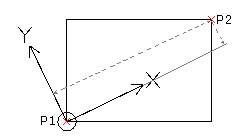
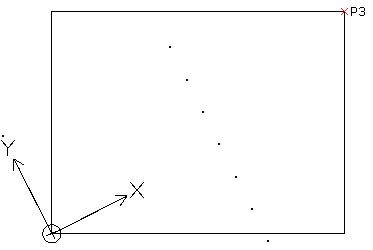
Result:
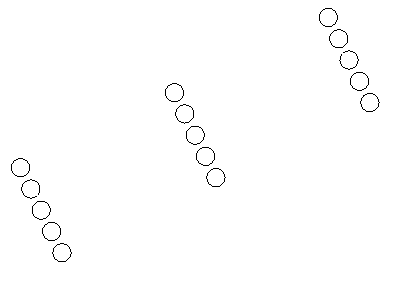
You can use the Undo option to cancel the most recent copy operation.To finish duplicating entities, press Enter.
To create random copies at a specified distance:
Do one of the following:
On the ribbon, click XtraTools > Modify > Copy Multiple.
On the menu, click XtraTools > Modify > Copy Multiple.
Type CopyMultiple.
In the graphics area, specify the entities to copy.
Press Enter.
Specify the base point.
Type Random and press Enter.
Specify the minimum distance between copies.
Press Enter.
As you move the pointer in the graphics area, random copies are created.
Press Enter.
Specify another copy option or press Enter to conclude copying.
Access
Command: CopyMultiple
Menu: XtraTools > Modify > Copy Multiple
Ribbon: XtraTools > Modify > Copy Multiple
Parent Topic