
Modifying Text Orientation
Use the EditTextOrientation command to rotate selected text, paragraph, or attribute entities keeping their current position.
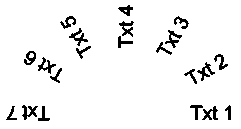
Additionally, the command provides the More Readable option that allows you to automatically rotate the selected text, paragraph, or attribute entities so that their orientation is as close as possible to horizontal read. For example, a horizontal upside-down text becomes horizontal right-side up.
To modify the text orientation:
Do one of the following:
On the ribbon, click XtraTools > Annotation > Edit Text Orientation.
On the menu, click XtraTools > Annotation > Edit Text Orientation.
Type EditTextOrientation.
In the graphics area, specify the text entities.
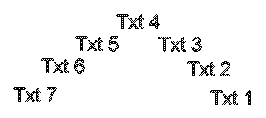
Press Enter.
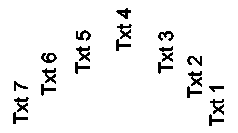
Type the absolute rotation angle (for example, 90) and press Enter.
The selected text is rotated.
To modify text orientation for more readability:
Do one of the following:
On the ribbon, click XtraTools > Annotation > Edit Text Orientation.
On the menu, click XtraTools > Annotation > Edit Text Orientation.
Type EditTextOrientation.
In the graphics area, specify the text entities.
Press Enter.
Specify the More Readable option and press Enter.
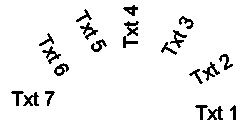
 Note: If the selected entities are in the right position, the More Readable option does not rotate them.
Access
Command: EditTextOrientation
Menu: XtraTools > Annotation > Edit Text Orientation
Ribbon: XtraTools > Annotation > Edit Text Orientation
Related Topics
Parent Topic