
Using Activities
Activities are associated to elements and define how the entities of the CustomBlock definition change when you manipulate the CustomBlock reference in the drawing.
When adding an activity to a CustomBlock definition, you need to specify the following:
The element to which you want to apply the activity
Note: You can apply activities to elements only. You cannot apply activities to CustomBlock entities.
A main point on the specified element
A main point lets you manipulate the Block reference.
A selection set
A selection set consists of the entities that move or change when the activity occurs in the Block reference.
Activities display their icon plus this bolt icon  . Clicking the activity icon displays the selection set.
Elements that do not have associated activities display this icon  . Double-clicking the warning icon displays the activities that you can associate to the element.
 Use the CBActivityIcon command to display or hide the activity icons in the Block Editor. See Turning Activity Icons On and Off.
You can apply multiple activities to an element. The software groups all activities into an Activity toolbar.
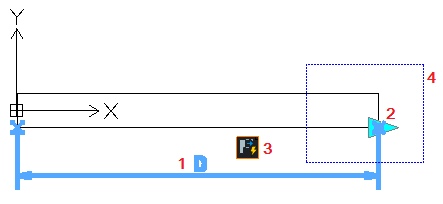
Hovering the mouse cursor over an activity icon highlights the following:
The related element
The element grip point that lets you perform the activity
The stretch frame (For stretch activities only). In a Block reference, moving the grip point affects only the entities in the stretch frame.
Note: The activity icon does not appear in the Block reference.
Example:
Hovering over a Stretch activity highlights the following:
|
|
The software groups activities according to the elements that can use them.
Block Editor activities and associated elements:
Activity |
Icon |
Transformation |
Available elements |
|---|---|---|---|
|
Applies translation |
Point, Linear, Polar, XY |
|
|
Applies scaling |
Linear, Polar, XY |
|
|
Stretches entities using stretch points from the specified area |
Point, Linear, Polar, XY |
|
|
Applies stretching and rotation |
Polar |
|
|
Applies rotation |
Rotation |
|
|
Applies mirror transformation |
Mirror |
|
|
Creates entities across element directions with the specified offset. For an XY element, the pattern uses the X and Y directions. |
Linear, Polar, XY |
|
|
Applies the value set to other elements |
Table |


Related Topics
Turning Activity Icons On and Off
Parent Topic