
Applying Stretch Activities
Use Stretch activities to move and stretch selected entities with a specified distance in the direction specified by the element.
You can apply a Stretch activity to the following elements:
Point. Moves and stretches the entities from the selection set by a specified distance in any direction.
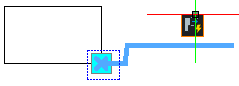
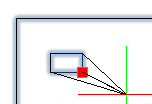
Linear. Moves and stretches the entities from the selection set by a specified distance in the direction specified by the linear element.
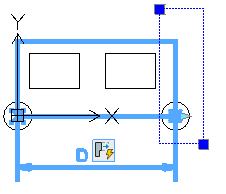
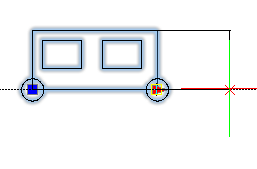
Polar. Moves and stretches the entities from the selection set with a specified distance in the direction specified by the element.
XY. Moves and stretches the entities from the selection set in the X and Y directions specified by the element.
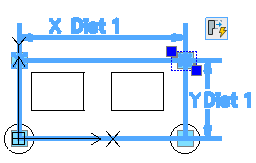
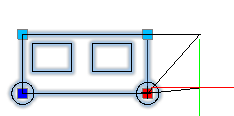
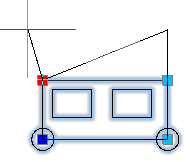
When associating a stretch activity with an element, you need to specify the stretch frame and the entities to include in the stretch activity.
The stretch frame specifies the part of the geometric entity to include in the activity.
Entities that lie completely within the stretch frame are moved.
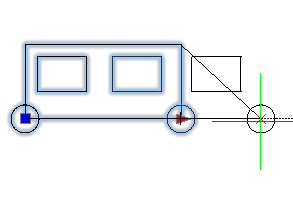
Example: In the picture below, the right circle lies completely within the stretch frame and therefore moves along with the grip point.
Entities included in the selection set whose outlines intersect the stretch frame are stretched.
Example: In the picture below, the big rectangle intersects the stretch frame. Moving the grip point stretches the rectangle.
Entities not included in the selection set, are not affected, regardless of whether they are within or crossed by the stretch frame.
Example: In the picture below, the left rectangle is outside the selection set. Moving the grip point does not change the left rectangle position.
Entities outside the stretch frame and included in the selection set are moved.
Example: In the picture below, the right rectangle is part of the selection set. Moving the grip point moves the right rectangle as well.
Example:
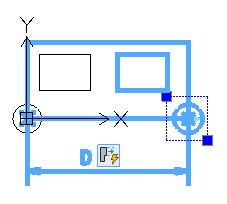
To apply a stretch activity to a CustomBlock definition:
In the Block Editor, type CBActivityTool at the command prompt.
Specify the Stretch option.
In the graphics area, specify one of the following elements to associate with the activity:
Point
Linear
Polar
XY
Specify an element main point to associate with the stretch activity.
Specify the first corner of the stretch frame.
Specify the opposite corner of the stretch frame.
Select the entities to associate with the activity and press Enter.
The activity icon appears on the specified element.
Related Topics
Applying Polar Stretch Activities
Parent Topic