
Constructing RichLines
You can use RichLines to draw 2 to 16 parallel linear entities.
You can create and manage styles for RichLines from Format > RichLine Styles.
To construct RichLine entities:
Click Draw > RichLine (or type RichLine).
In the graphics area, specify:
A start point for the RichLine.
Segment vertices to define the RichLine.
Press Enter.
 After specifying points, you can specify the Close option to close the RichLine entity.
To include justification options when creating RichLines:
When setting justification options, RichLines are drawn relative to the offset specification of the active RichLine Style.
Click Draw > RichLine (or type RichLine).
Specify the Justification option.
Specify an option:
Bottom. Draws the RichLine segment above the points you select, with the line element with the most negative offset at the specified vertices.
Top. Draws the RichLine segment below the points you select, with the line element with the most positive offset at the specified vertices.
Zero. Defines a centerline through the segment points you select.
In the graphics area, specify:
A start point for the RichLine.
Segment vertices to define the RichLine.
Press Enter.
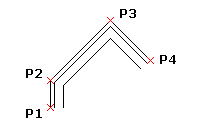
To modify the RichLine scale:
Click Draw > RichLine (or type RichLine).
Specify the Scale option.
Type a scale factor value.
The default scale factor is 1.0. For example, to halve the width of the RichLine, use a value of 0.5. This scale factor does not affect the overall LineScale factor.
In the graphics area, specify:
A start point for the RichLine.
Segment vertices to define the RichLine.
Press Enter.
To select a style when constructing a RichLine:
Click Draw > RichLine (or type RichLine).
Specify the Style option.
Type a style name or specify the ? option to list RichLine Styles.
In the graphics area, specify:
A start point for the RichLine.
Segment vertices to define the RichLine.
Press Enter.
Access
Command: RichLine
Menu: Draw > RichLine
Ribbon: Home > Draw > (Flyout) RichLine
Related Topics