
Constructing Lines
Use the Line command to construct Lines in a drawing.
 Use the following methods to restrict cursor movement:
Ortho mode restricts cursor movement to the horizontal and vertical directions.
Polar guides restrict cursor movement to specified angles. Additionally, you can display temporary alignment paths defined by specified polar angles.
Angle overrides restrict cursor movement along the specified angle for specifying the next point
To construct a Line or a series of connected Lines:
Click Draw > Line (or type Line).
In the graphics area, specify:
A point to start the line segment.
A point to end the line segment.
Another point to define the next segment or press Enter to finish the drawing.
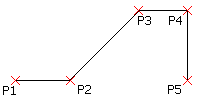
Each segment in a series of connected Lines is a separate entity. You can also use the Line command to append Lines to existing Lines or Arcs.
To undo a line segment:
Press Ctrl + Z or type Undo.
To close a Line drawing:
Specify the Close option.
To append a line segment to an existing line or arc:
Click Draw > Line (or type Line).
Press Enter.
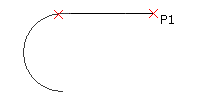
The appended continuation line attaches to the end of last Line or Arc that you drew.
Click a point to define the appended line segment and press Enter.
Access
Command: Line
Menu: Draw > Line
Ribbon: Home > Draw > (Flyout) Line
Tool Palettes: Draw > Line
Related Topics