
Creating Angular Dimensions
The AM_PowerDimensionAng command creates angular dimensions that measure the angle between two lines or three points. The command also measures the angle that two points on a circle subtend on the center.
You can modify angular dimensions using the Power Dimensioning contextual ribbon.
If you select a power dimension in the graphics area and the ribbon is active, the Power Dimensioning ribbon tab appears. The contextual ribbon tab groups options and tools for controlling the dimension text, precision, and tolerance.
You can add a baseline dimension starting from an existing angular dimension. Creates an additional dimension from a common first extension line.
Note: The two lines of the angle define two infinite reference lines, which divide the graphics area into four quadrants.
To create an angular dimension for a specified entity:
Click Mechanical Annotate > Mechanical Dimension > Angular (or type AM_PowerDimensionAng).
In the graphics area, specify one of the following:
An Arc
Two points on a Circle
Two Lines.
Click in the graphics area to place the dimension.
- or -
Specify the Quadrant option to lock the dimension to a specified quadrant.
Repeat steps 2 to 3 to continue dimensioning or press Enter.
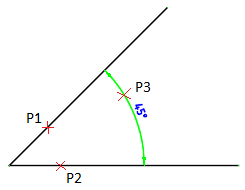
To dimension the angle beween two lines:
Click Mechanical Annotate > Mechanical Dimension > Angular (or type AM_PowerDimensionAng).
In the graphics area, specify the first and the second line.
When you move the pointer between the two lines, the preview shows the inner angle dimension. When you move the pointer outside the two Lines, the preview shows the outer angle dimension.
Click in the graphics area to place the dimension.
- or -
Specify the Quadrant option to lock the dimension to the specified quadrant.
Note: The two lines define two infinite reference lines, which divide the graphics area into four quadrants.
Repeat steps 2 to 3 to continue dimensioning or press Enter.
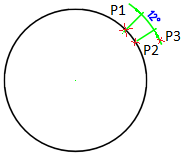
To dimension the central angle two points on a circle subtend:
Click Mechanical Annotate > Mechanical Dimension > Angular (or type AM_PowerDimensionAng).
In the graphics area, specify the Circle. The point you specify determines the first leg of the angle.
Use EntitySnaps to define the first point on the Circle.
Select the second point on the Circle. This point defines the angle with the center of the circle as the vertex.
When you move the pointer, the preview shows the inner angle Dimension and the reflex angle Dimension.
Click in the graphics area to place the dimension.
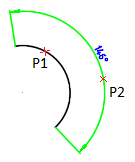
To dimension the angle a specified arc subtends on its center:
Click Mechanical Annotate > Mechanical Dimension > Angular (or type AM_PowerDimensionAng).
In the graphics area, specify the arc.
Click in the graphics area to place the dimension.
Access
Command: AM_PowerDimensionArcLen
Menu: Mechanical Annotate > Mechanical Dimension > Angular
Ribbon: Mechanical Annotate > Mechanical Dimension > Angular
Related Topic
«Power Dimensioning» Contextual Ribbon Tab
Parent Topic