
Creating Centerline Crosses on a Plate
Use the AM_CenCrPlate command to place holes and centerline crosses in all corners of a closed contour that represents a plate.
You can place centerline crosses at a specified distance from the contour, within the contour or outside the contour.
By default, holes are represented as centerline crosses with circles. Optionally, you can place centerline crosses only.
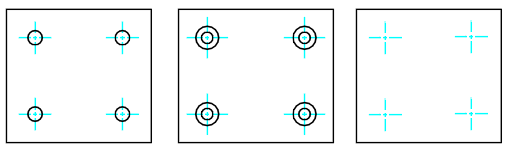
To create centerline crosses on a plate:
Before starting, make sure the entities on which to place holes and centerline crosses exist and are correct.
Do one of the following:
On the ribbon, click Home > Centerlines > Centerlines > Centerline cross on Plate.
Type AM_CenCrPlate.
Type an offset distance for the cross center and press Enter.
In the graphics area, specify an entity.
Click inside or outside the contour to specify where to place the centerline crosses.
Specify the No hole option to create the centerline crosses only.
Specify the diameter for the centerline cross.
To create centerline crosses with holes on a plate:
Do one of the following:
On the ribbon, click Home > Centerlines > Centerlines > Centerline cross on Plate.
Type AM_CenCrPlate.
Type an offset distance for the cross center and press Enter.
In the graphics area, specify an entity.
Click inside or outside the contour to specify where to place the centerline crosses.
Type a value for the diameter of the circle that represents the hole.
Alternatively, you can define the diameter by specifying two points in the graphics area.
 To draw multiple concentric circles at once, specify a set of diameter values separated by |.
Press Enter.
Access
Ribbon: Home > Centerlines > Centerlines > Centerline cross on Plate
Command: AM_CenCrPlate
Related Topics
Creating Centerlines and Centerline Crosses
Parent Topic